Discogs 64
Well, what started off as a bit of fun has become quite a useful piece of software for the Commodore 64. Made easier, of course, by the availability of Discogs datasets on the internet. This is a brief guide on how to use Discogs64 and where to get discography data from.
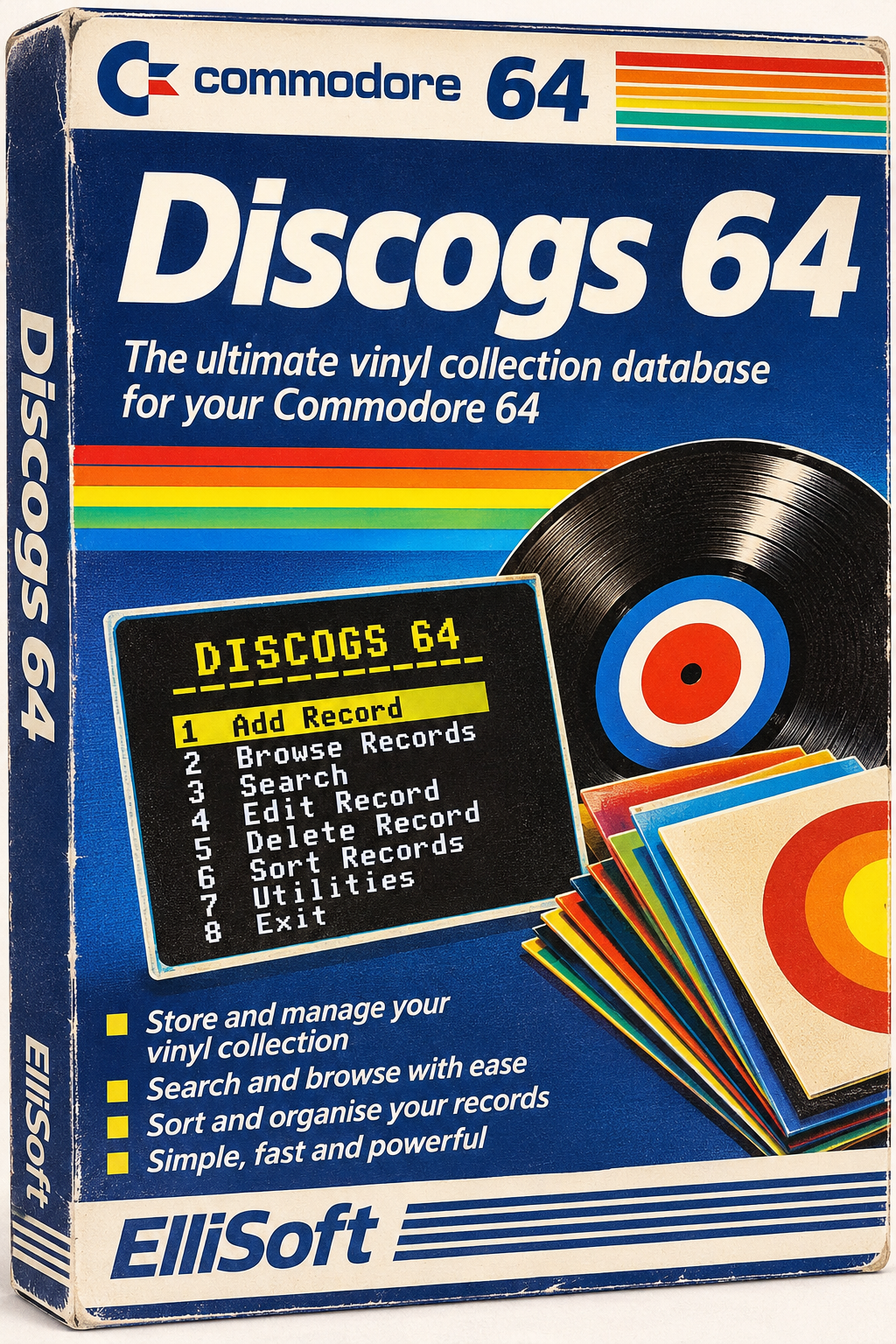
Installation
Discogs64 was written in XC=BASIC and compiled to machine code. Any database program of any practical use needs to be compiled to machine code for speed. The resulting prg file was injected into a d64 disk file using the VICE c1541 utility.
To load it in simply type LOAD "DISCOGS64",8,1 and then, when ready, just type RUN to start.
Adding Records
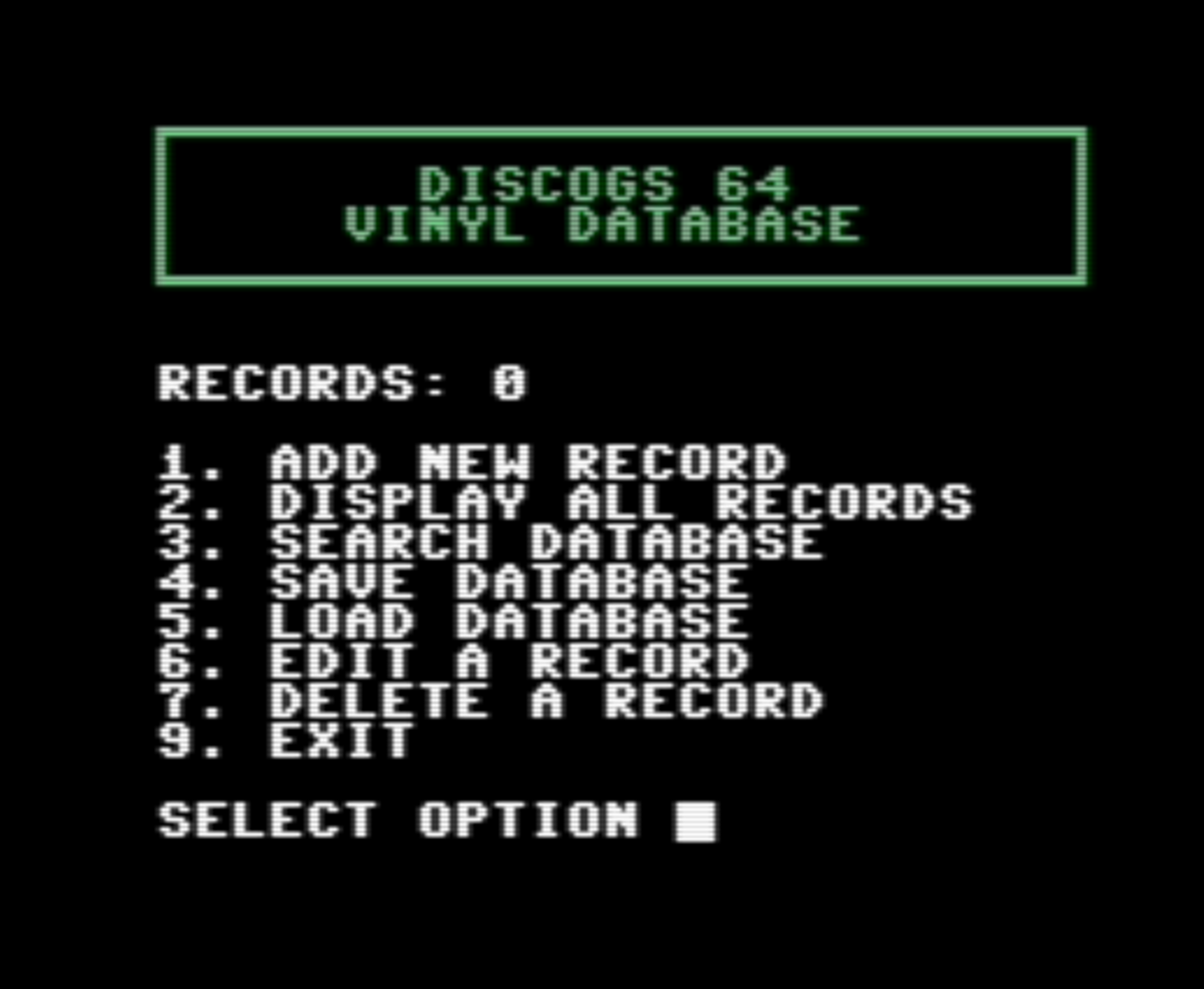
Discogs64 can be used right out of the box. Just select menu option 1 and start typing! You can add all your records manually up to the current limit of 100 per database file. For larger collections you'll need to split between files and, if required, disks, which is easy to do and allows for unlimited records. On a real C64 or C64U (or others) or even via VICE, simply take care to label disks correctly, who-set1.d64, who-set2.d64 etc.
Discogs64 actually acts as two distinct pieces of software; a collection database for your own personal records, and a reference database for Discogs datasets.
Although the menu and operation is, I think, self explanatory I will take some time soon to make a short manual to go with the program.
More complicated is getting Discogs data into the database.
Importing Discographies
The entire Discogs database is available at Kaggle
Be warned, these are LARGE files. I find it better to be a little selective and just go for releases, which is all we need anyway. Break it down even further by selecting just the columns we are interested in for Discogs64. Depending on the year and month you go for, you'll get something very similar to this:
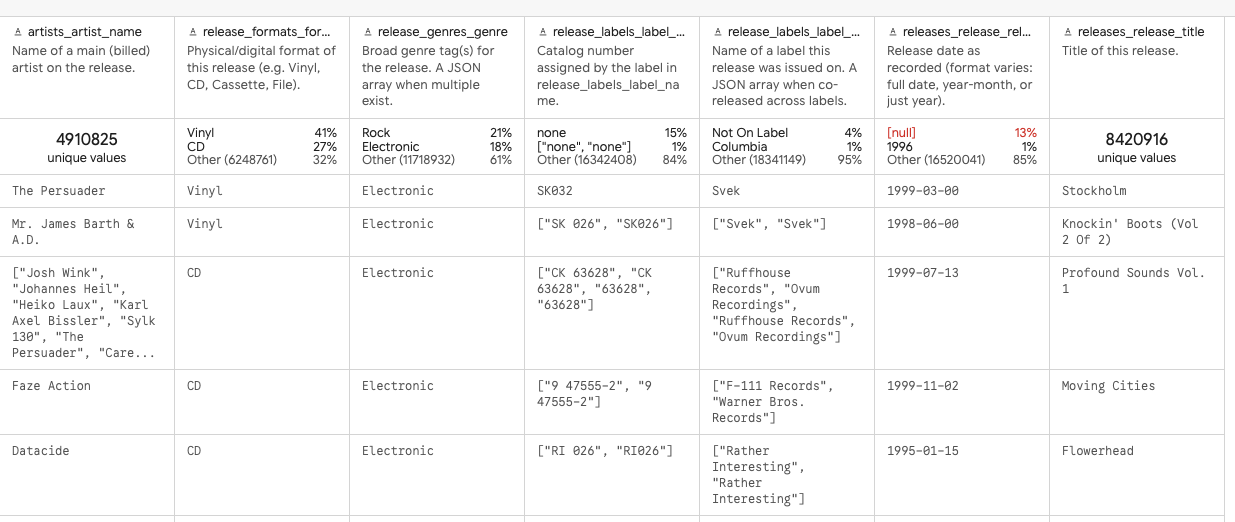
Hitting download takes a long time for the file to be prepped and then to actually trigger the saving of the file. Just make sure it says 'downloading' and go and have a cup of tea.
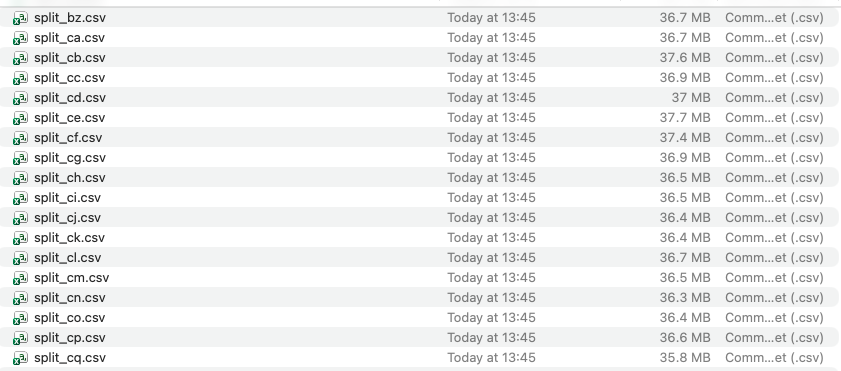
Once you have the very large csv file you'll need to break it up into manageable chunks using the split command. I did mine in batches of 250,000. It's pretty quick on my MacBook Pro but haven't tried it on anything else.
So you should end up with a load of files that we can work with in Excel.
Remember we can only work with files of 100 or fewer records for Discogs64 so sort/filter on what you need and create a new file with the 100 records or so chosen. Next we'll need to get them into the right format for a SEQ file that Discogs64 can read.
I use an Excel macro for this bit which makes everything lower case and concats each field with a carriage return so you get something like this:
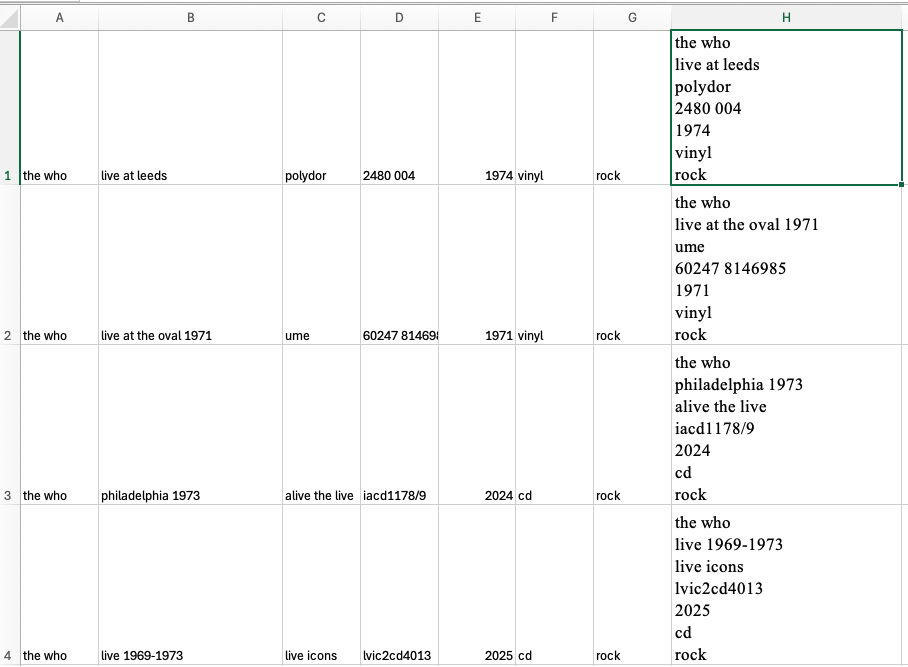
In my example we now just need column H, so I simply copy/paste that into Visual Studio Code and, and this bit is important, put the count of all the files on the first line. So in my 'Who part 1' example we have 65 records in total and we end up with something that looks like the below. Save that as a txt file which we are now going to convert to a SEQ file and place inside a D64 Commodore 64 disk image.
NB 65 is just scratching the surface of Who releases - I will be building up a set of SEQ files for the whole discography over the coming weeks/months!
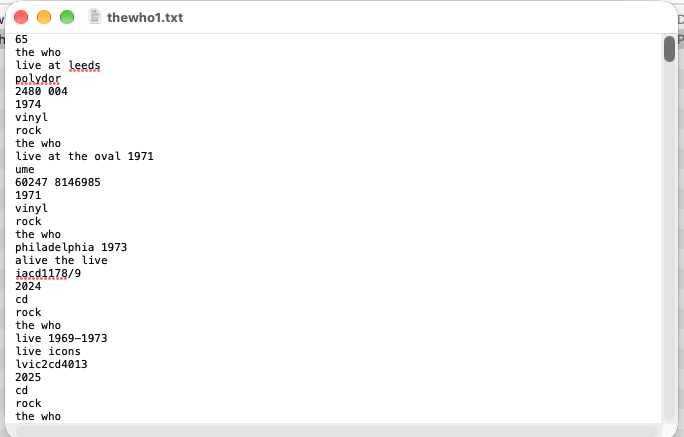
With all the above being said, it doesn't really matter how or where you get your discography data. It can be directly from Discogs as a Wants List or, of course, your entire collection, but the formatting is the important bit to get it looking like the example above. Once you have the data files from Kaggle the rest can be pretty much automated. Or, as previously mentioned, you can just type everything directly into Discogs64, with a nice glass of wine by your side and maybe some snacks. Old school.
DirMaster
DirMaster is a great utility but, sadly, only runs on Windows. Luckily, for me anyway, it runs very well on Windows 7 and I still have my trusty Acer netbook which is just fine for the job.
DirMaster is a pretty powerful utility, but I only want to use it for a specific reason. I create a new D64 disk and then import my formatted txt file, which DirMaster directly converts to a Commodore format SEQ file. Then I just save the D64 file back to the USB drive and bring it back to the MacBook.
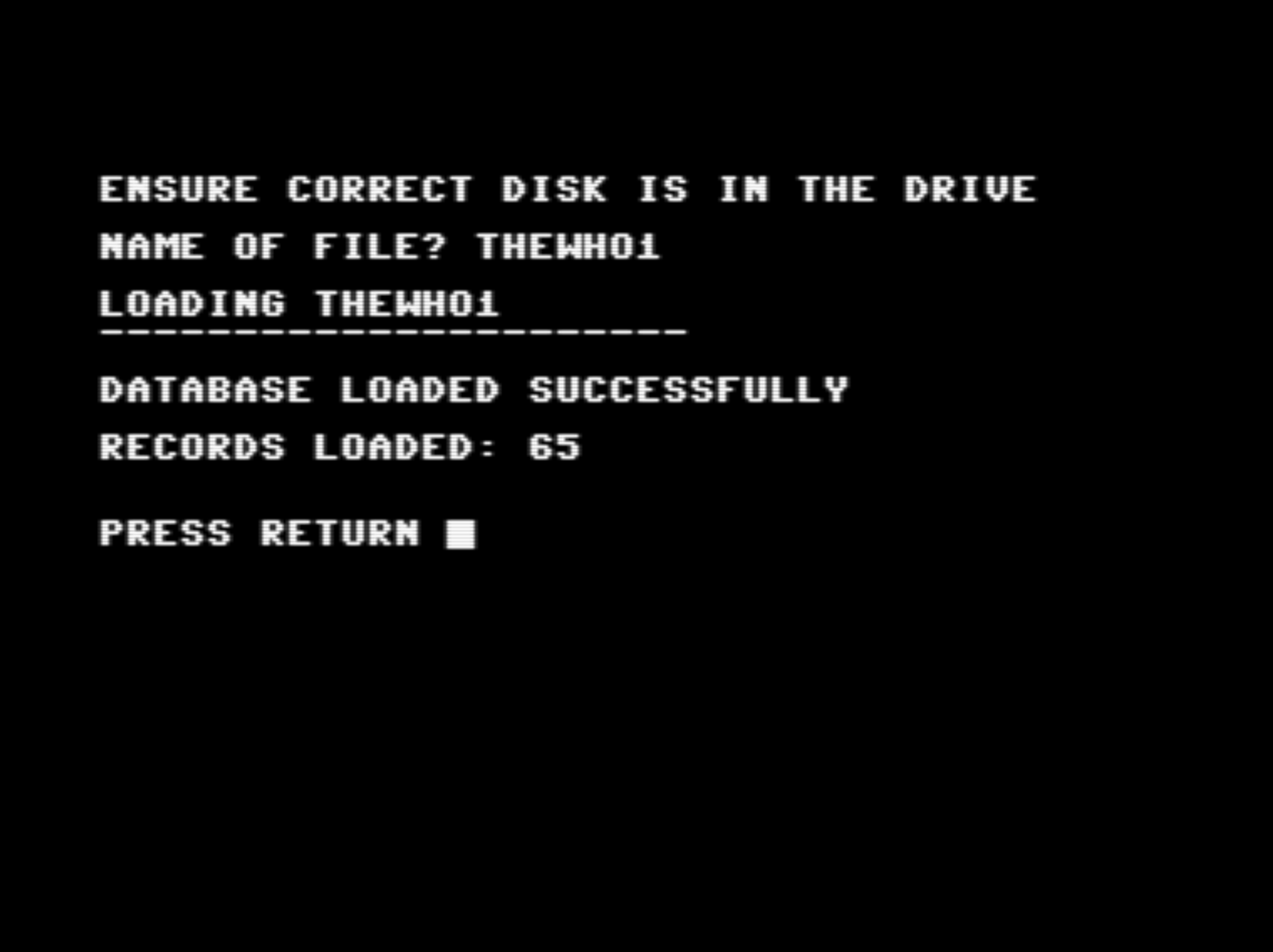
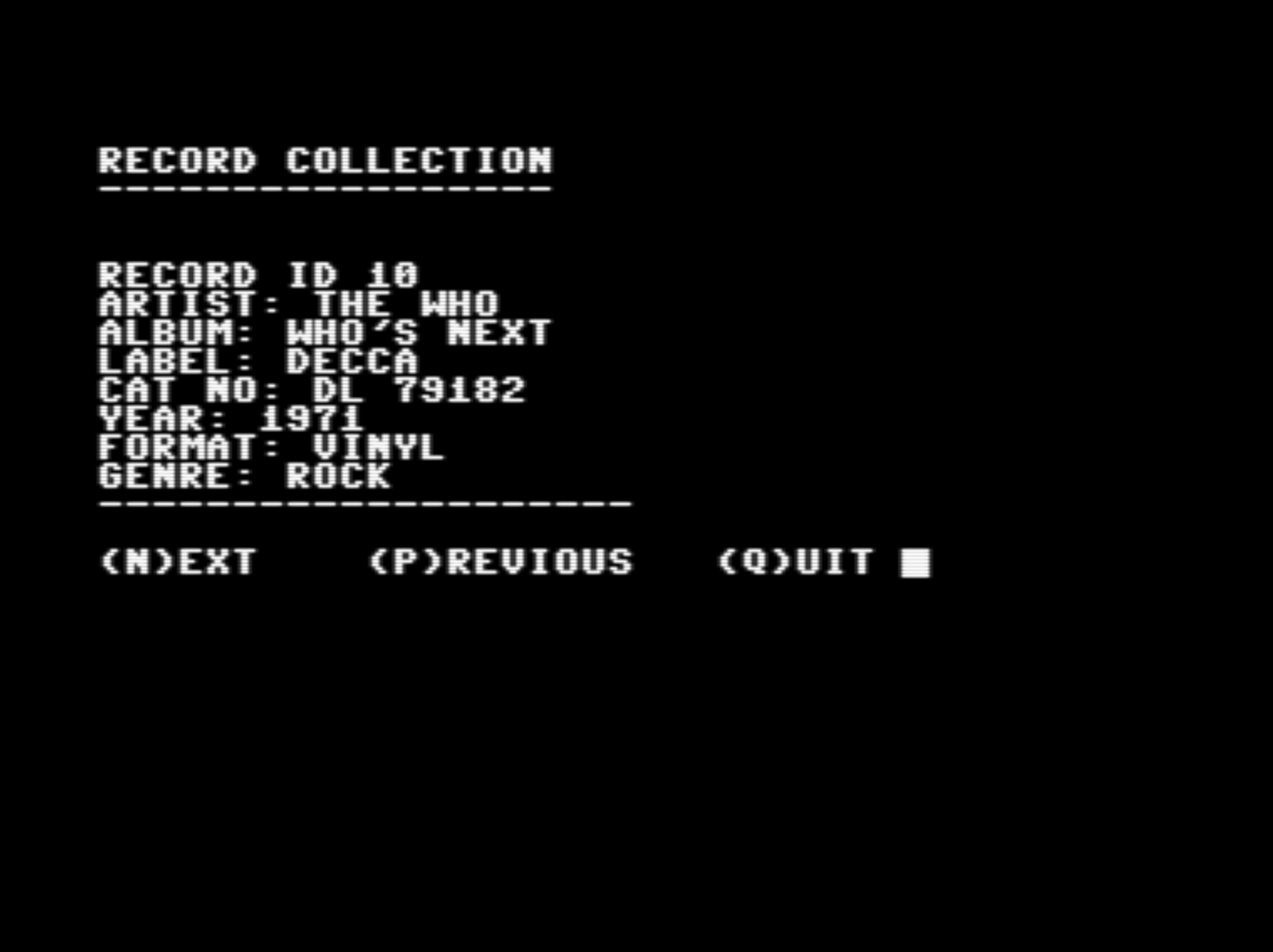
OK, I now have the program running on the commodore, and a new C64 disk with 65 Who Discogs entries ready to be loaded in.
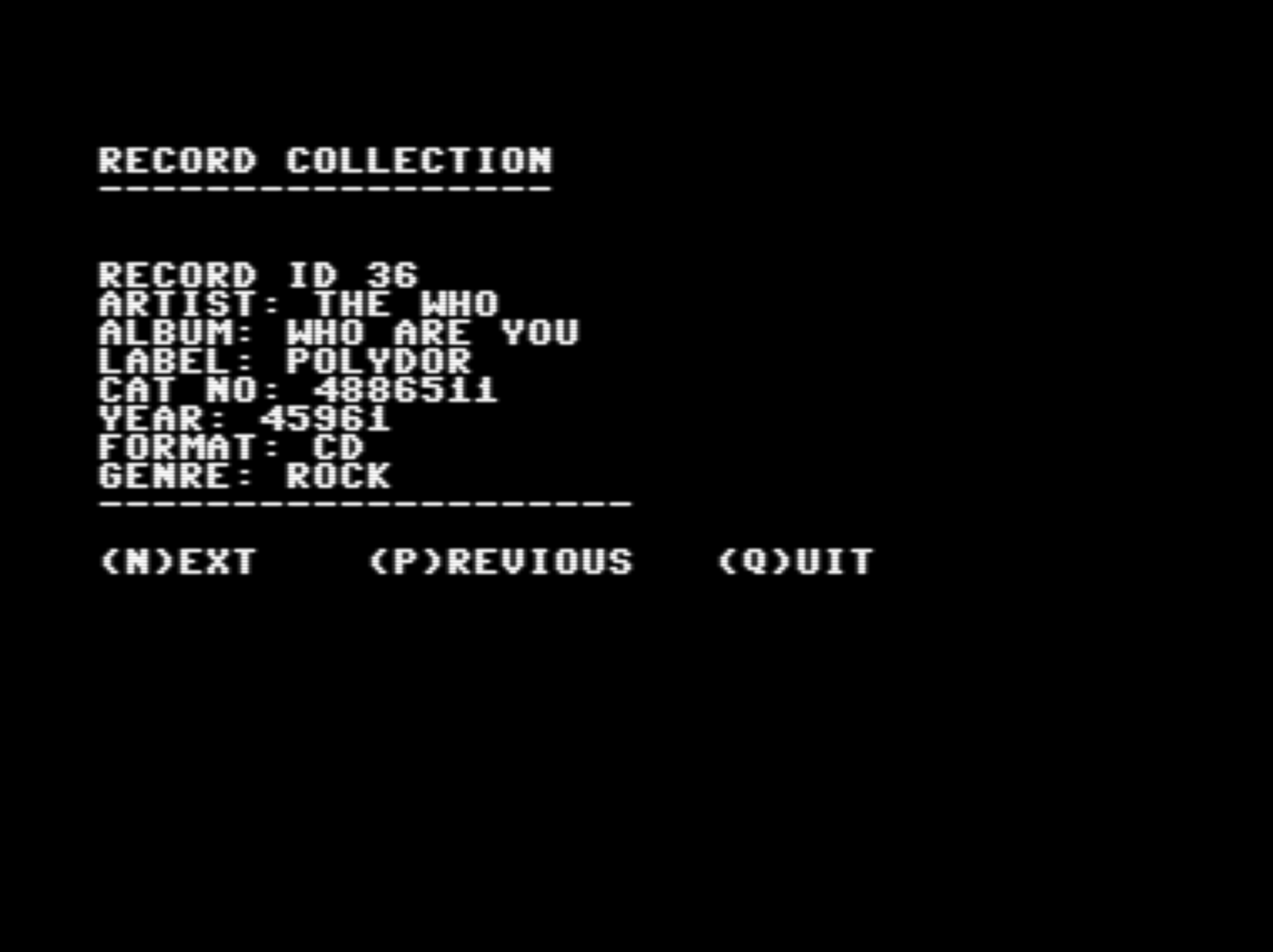
More refinements to come before I make it available for others to use, and I'll create some documentation too.
Until next time!